Artificial Intelligence
How to run multiple Claude Code accounts on one Mac
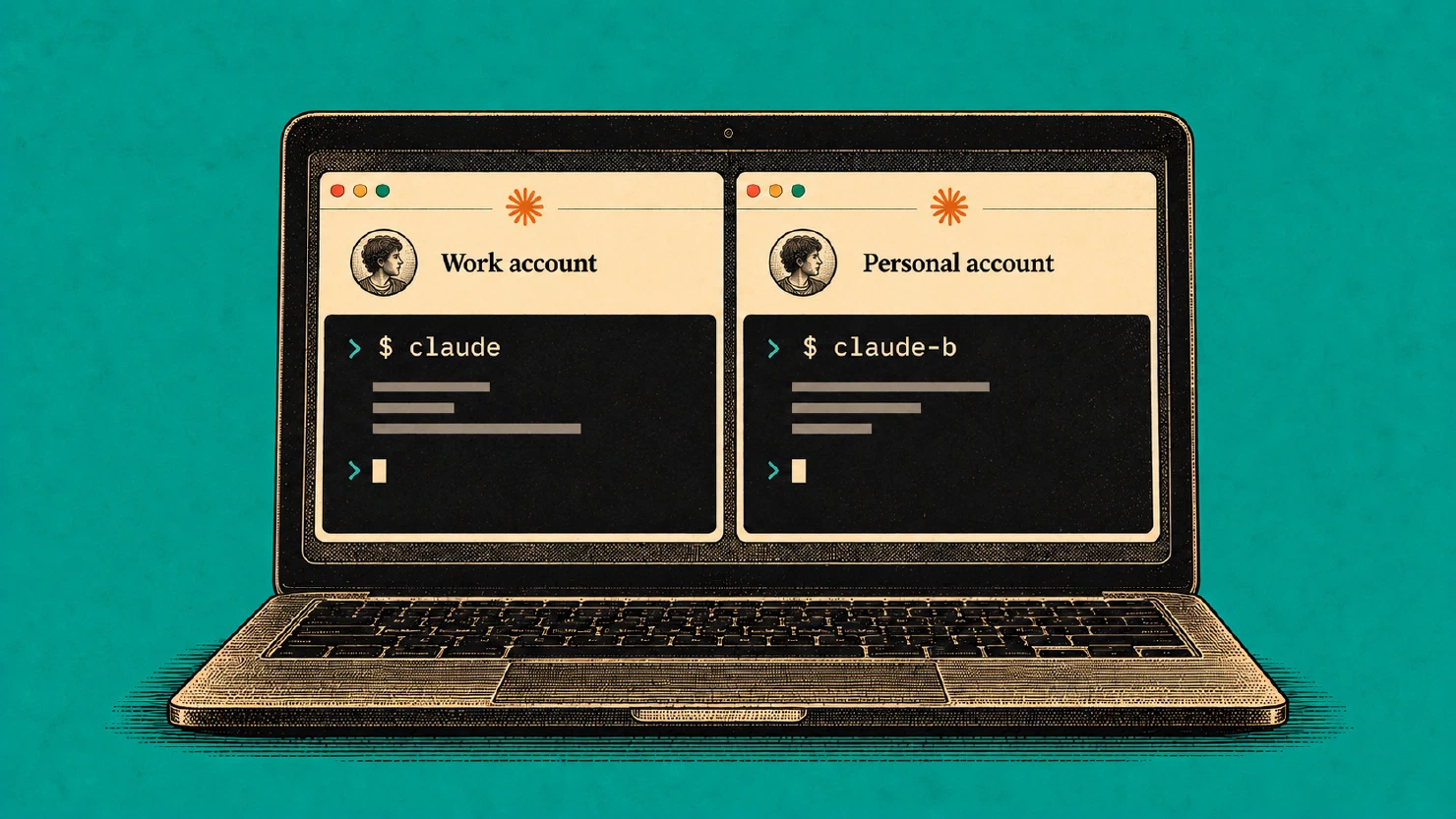
My Claude Code accounts run side by side on one Mac. Here is how I keep the logins separate, share the tools I need, and attach to the current coordinator.
The short version
- You can run two (or even more) Claude Code accounts at the same time on one Mac. You can give each its own configuration and login with
CLAUDE_CONFIG_DIR, and then use a named wrapper to select the account. - Usage is drawn from the signed-in account and its plan. As expected, another config directory does not give the same account another allowance.
- You should share rules and tools deliberately. Both sessions can access the same files as your macOS user. If they work on one repository, keep one coordinator and hand work over through files.
I have a business Claude account for work-related projects and a personal one for my own projects and side quests. For a while I switched between them by logging out and back in. That got tiresome really quickly, and I wanted to keep using the rules, skills and agents I had already built without mixing the two accounts’ histories, while making use of both accounts’ limits.
So now I run both on the same Mac. The second Claude Code session uses its own CLAUDE_CONFIG_DIR, which selects its configuration and login. Each session draws usage from the account I sign in to. If I’m using both at the same time, each uses its own account’s allowance.1
I also made a few mistakes while setting this up so I added checks for which account I was actually using.
As a reasonable step, I’d suggest you check your plan terms before setting this up. Also, if one account belongs to your employer, there might be a policy determining what you can do with it.
How CLAUDE_CONFIG_DIR separates two Claude accounts
Claude Code uses ~/.claude as its default configuration directory. CLAUDE_CONFIG_DIR points it at a different directory with its own settings, session history and claude.ai login. On macOS, the credentials normally live in Keychain, with an entry keyed to that directory.2
| Where I start Claude | Account in my setup | Configuration |
|---|---|---|
| Desktop app | A | The app’s own sign-in |
Terminal: claude | A | ~/.claude, with no override set |
Terminal: claude-b (wrapper below) | B | ~/.claude-b |
This setup is for claude.ai subscription accounts. The documentation makes an exception for two Claude Console sign-ins without API keys, which separate configuration directories do not isolate.
Also, the directory-specific Keychain entry keeps the second login separate from the first. History and settings stay in their own separate directories and the usage and limits are connected to the signed-in account. Both accounts, and any others I add, still run as the same macOS user and can access the same files.
I haven’t tested this on Windows or Linux, but my assumption is that it would still work.
One thing that I learned along the way - the variable is easy to forget when starting a new terminal or background session. That is why I eventually gave account B its own command so I can start it with its own wrapper command.
Step 1: create a second Claude config folder (and share only what you choose)
Start with Claude Code already installed. The wrapper below also uses jq to read JSON; check that both commands are available with claude --version and jq --version.
The new config folder starts empty. I wanted both accounts to use the rules and tools I had already built, so I linked CLAUDE.md, skills and agents from my existing folder:
mkdir -p "$HOME/.claude-b"
ln -s "$HOME/.claude/CLAUDE.md" "$HOME/.claude-b/CLAUDE.md"
ln -s "$HOME/.claude/skills"    "$HOME/.claude-b/skills"
ln -s "$HOME/.claude/agents"    "$HOME/.claude-b/agents"
These optional links assume the source files and directories already exist. You should skip any you do not have. The nice thing about symlinks is that they share the original files, so edits through either account affect both.
If you also want to copy settings, review them first for hooks, account-specific paths, integrations and secrets, then copy the reviewed file after you are happy with your setup there:
cp "$HOME/.claude/settings.json" "$HOME/.claude-b/settings.json"
Be sure to link only what you want both accounts to see.
My rough rule for this was along the lines of tools and writing rules are fine to share while anything with client data or secrets is not.
If both accounts work on the same repository and you want them to read the same project notes, you can also link that repository’s memory folder - it’s very useful as you don’t have to “re-teach” another session of your ways of working, previous decisions and so on.
To do that, just hit /memory in each interactive account to check the actual location. The following is an example path, not a name to copy literally - so just use your own things once you have them:
mkdir -p "$HOME/.claude-b/projects/-Users-you-Development-myproject"
ln -s "$HOME/.claude/projects/-Users-you-Development-myproject/memory" \
      "$HOME/.claude-b/projects/-Users-you-Development-myproject/memory"
Again, check this against your Claude Code version. The current documentation says all worktrees and subdirectories in one Git repository share one auto-memory directory within a configuration.
If you are running separate account configurations, they will still need deliberate sharing. Background sessions currently have auto memory off by default, so I give them explicit handoff files rather than assuming those notes will load automatically.3
Step 2: log in to the second Claude account
CLAUDE_CONFIG_DIR="$HOME/.claude-b" claude auth login --claudeai
This command opens a login page in your default browser. Mine was already signed in to the other account, so check the email on that page before proceeding. Or you can use the incognito or another browser.
You can copy the address printed in the terminal into a private/incognito window signed in to account B. Allow access, then paste the code from the page back into the terminal - essentially just follow the instructions on the screen at that time.
Then check:
CLAUDE_CONFIG_DIR="$HOME/.claude-b" claude auth status
Check the account identity in the output. Current versions also report configDirectory, which should point to ~/.claude-b. If the identity is wrong, correct the login before starting work.4
The first interactive start asked a few more questions: a color theme, a second browser login and “Do you trust the files in this folder?”. That is normal.
Step 3: a wrapper script so you always know which Claude account is running
This is where I lost the most time, and it’s a pretty naive thing to do in the beginning, so I figured I’ll share it here to help some of you avoid the same confusion.
I was testing a background session with permission bypass and used --dangerously-skip-permissions without selecting the second configuration. The one-time acceptance went into account A’s settings instead of account B’s.
That was the point when I figured out I could make a small wrapper instead of typing long variables and commands by hand.
All this wrapper now does is that it prints the account and any cached usage reading first, then starts Claude with the right folder. Create its directories like so:
mkdir -p "$HOME/.claude-b/bin" "$HOME/.local/bin"
Then, save the following as ~/.claude-b/bin/claude-b:
#!/bin/bash
# ~/.claude-b/bin/claude-b
export CLAUDE_CONFIG_DIR="$HOME/.claude-b"
email=$(claude auth status 2>/dev/null | jq -r '.email // "NOT LOGGED IN"')
week="not cached"
if [ -r "$CLAUDE_CONFIG_DIR/meter.json" ]; then
  cached=$(jq -r '.seven_day.used_percentage // empty' \
    "$CLAUDE_CONFIG_DIR/meter.json" 2>/dev/null)
  [ -n "$cached" ] && week="${cached}% at the last reading"
fi
printf 'ACCOUNT B: %s | weekly %s | folder %s\n' "$email" "$week" "$PWD"
if [ "$1" = "attach-main" ]; then
  main=$(claude agents --json 2>/dev/null | jq -r '
    [.[] | select((.name // "") | test("^coordinator-[0-9]+$"))]
    | sort_by(.name | ltrimstr("coordinator-") | tonumber)
    | last // empty
    | "\(.id) \(.name) \(.status // "-") \(.state // "-")"
  ')
  if [ -z "$main" ]; then
    echo "No coordinator session found on account B."
    exit 1
  fi
  read -r id name status state <<< "$main"
  printf 'Main coordinator: %s (session %s), status %s, state %s\n' \
    "$name" "$id" "$status" "$state"
  if [ "$state" = "done" ]; then
    echo "$name has ended. No main coordinator runs on account B now."
    exit 1
  fi
  [ "$2" = "--show" ] && exit 0
  exec claude attach "$id"
fi
exec claude "$@"
I first tried an alias in ~/.bash_profile, then got “command not found” in a terminal that was already open. A shell that does not read that file would miss it too.
So instead, I just put an executable script on PATH:
chmod +x "$HOME/.claude-b/bin/claude-b"
ln -s "$HOME/.claude-b/bin/claude-b" "$HOME/.local/bin/claude-b"
I also suggest that you test and check that command -v claude-b finds the script. If ~/.local/bin is not on your PATH, add this line to the startup file for your shell:
export PATH="$HOME/.local/bin:$PATH"
Then open a new terminal, or you can also run ~/.claude-b/bin/claude-b directly.
Now claude-b starts account B. The wrapper also passes subcommands and their arguments straight through and the session-management examples below use it the same way.
I also gave account B a status line that says so - just to make it more obvious to me at all times on which account I’m working on right now.
The status line command gets the plan meters as JSON on stdin. Mine labels the account and shows the weekly usage percentage at the bottom of each session. I originally included a five-hour meter too. It also writes those readings to ~/.claude-b/meter.json.
Also, keep in mind that file is my own cache, it’s not a built-in Claude Code file. The status-line input can provide rate-limit percentages, but those fields may be absent. Also, the wrapper works without the cache and says “not cached” until a separate status-line script writes it.5
Step 4: five tests before you give the second account real work
You can skip these, but I ran five short tests to check that the sessions could read shared notes, hand work over through files, and use the right account. On my Ultra plan (20x) they used well under 1% of the account’s week limits:
A session on B explicitly reads a shared project note and a rule from
CLAUDE.md. That checks access through the links but it does not prove auto-memory loading in a background session.A small task on B moves B’s usage reading, and account A’s meter stays the same. I checked the account identity too and also a cached reading alone is not proof of billing isolation.
Start a short background task, list the sessions and inspect its output:
claude-b --bg "Summarize this repository and stop."
claude-b agents --json
claude-b logs SESSION_ID
Replace
SESSION_IDwith the ID returned when the session starts. Check that the session ends by itself.The status line also writes the usage file inside a background session.
A background session starts two subagents in parallel, and both report back. In my tests, those subagents used their parent session’s account. I still check the identity if a task starts another CLI process of its own.
Test 3 failed at first because I had enabled permission bypass. Claude would not start the background session until I accepted the disclaimer in account B’s configuration. I had accepted it on account A, but that did not carry over. Oh well…
Permission bypass lets a session run commands without the usual permission prompts. It is optional and the examples here leave it off. Background sessions can still need your attention when they reach a permission request.6
Using two Claude accounts in the same repository
Most of the time my accounts work on unrelated projects. When they do touch the same repository (for example my Second Brain repo), or when a long session reaches its context limit and a fresh one has to take over, I need a handoff the next session can actually read.
I keep one main coordinator at a time. Two coordinators working from the same state could assign the same issue or merge over each other, so I’d just avoid that.
The hand-over goes through files, not chat and I like that:
A shared notes file, where the coordinator writes a dated “state at” block: what is done, what runs, and the exact next steps.
A brief file for the next coordinator.
A fixed start file,
~/.claude-b/START-B.md, that points to the current brief. I update that pointer when I hand work over:
cd "$HOME/Development/myproject" && claude-b --bg \
  --name coordinator-1 "Read ~/.claude-b/START-B.md and follow it."
In my first real hand-over, the new session read its brief and the notes and had its first step done in 6–7 minutes.
In my other tests, a session on one account could neither list nor message a session on the other. When I had a new decision for the other side, I pasted a line into that session pointing to the file with the details. Maybe I’m missing something here…
My desktop workflow also had to be changed a little bit. Task cards, browser access and usage tools depended on the interface. On the CLI side, I used the optional meter cache, an MCP browser server and claude --bg. Of course, the available tools may differ in your installation.
Watching a background Claude Code session
The CLI provides agents, attach and logs for managing background sessions. The keyboard observations below are from my setup; check the detach help in your installed version.
claude-b agentslists the sessions with their ids.claude-b attach <id>shows one session in your terminal, and you can type in it.Ctrl+Z drops you back to the shell. The session keeps running.
Closing the tab is also safe. The terminal warns that a command is running, but that command is only the viewer. The session belongs to the Claude background service, not to the tab. I checked the process tree to be sure.
With Remote Control on, the session also shows a claude.ai link, so you can watch from your phone if you log in there with the same account.
One mistake to avoid: I pressed Esc twice by habit while I watched, and that stopped the session’s current step. Its subagents kept running. I typed “continue”, and it picked up from its notes. But I got a scare when it all closed.
Attach to the current main coordinator
I also added attach-main to my wrapper, so I can attach without looking up a session ID after each handover. I name the coordinators coordinator-1, coordinator-2, and so on, increasing the number each time a new coordinator takes over.
With the helper in the B wrapper above, I can check the target first and then attach:
claude-b attach-main --show
claude-b attach-main
The helper lists account B’s sessions, matches the coordinator names, sorts their numbers and attaches to the highest-numbered one by ID. After a handover from coordinator-9 to coordinator-10, the next call targets coordinator-10. A newer worker session does not change that target. If no coordinator matches, or the selected coordinator has ended, the helper stops and prints a message.
My C wrapper also accepts the space-separated spelling:
claude-c attach main --show
claude-c attach main
Those shortcuts are additions to my wrappers. In plain Claude Code, attach takes a session ID or name; main does not automatically mean the latest coordinator. The minimal C launcher in the FAQ only selects account C and does not include this helper.
Some lessons learned
Make the account visible everywhere: the wrapper’s first line, the status line, and
/statusinside a session. Might sound paranoid, but it will save you some confusion.Never type the variable by hand. Use the wrapper.
Share tools and rules on purpose and keep data and secrets apart.
Run the five tests before you give the second account real work so you avoid surprises and wasted tokens.
If both accounts touch one repository, keep one main coordinator and do the hand-over in files.
Leave an attached session alone when you only want to watch. Hitting Esc there can interrupt the current step, so be careful.
My setup took an afternoon, and most of it was spent on those mistakes. I still paste messages between the accounts, and I still check which tab I am in before typing.
FAQ
Can I use multiple Claude Code accounts at the same time?
Yes. Give each claude.ai account its own CLAUDE_CONFIG_DIR and login, then start each in a separate terminal tab or background session. Both accounts can stay signed in. The keyless Claude Console exception described above is still applicable.
Does the desktop app support a second account?
In my setup the desktop app stays on one account, and the second account runs in Claude Code’s terminal interface - the CLI - but you can run that CLI in Desktop’s terminal window, it works just fine. Both can work on the same files. This setup does not require switching the desktop app’s account - that’s what I wanted to avoid from the get go.
Do the two accounts share my CLAUDE.md, skills and agents?
The user-level rules, skills and agents in this setup are shared through the links I chose in step 1. You can leave those separate. Both accounts can still read project files in a shared repository.
Do the usage limits add up or mix?
Claude Code usage follows the signed-in account and its plan. Of course, creating another config directory does not create an extra allowance on the same account. In my setup the two accounts’ weekly windows reset on different days.
Can both Claude accounts work on the same repository?
Yup. Separate Claude configurations do not separate filesystem access: both sessions run as the same macOS user and can read or edit the same repository. I keep one main coordinator and use files for handoffs so they do not assign or change the same work accidentally.
Can a session on one account send a message to a session on the other?
In my tests, a session on one account could neither list nor message sessions on the other. I hand work over through files: shared notes, a brief and a fixed start file. I just wasn’t able to find another way - doesn’t mean that it’s impossible though.
How do I switch between Claude accounts without logging out?
Keep each account in its own config folder and launch it with its own command. In this setup, claude selects account A and the claude-b wrapper selects account B. Both remain signed in.
Can I add a third or fourth Claude Code account?
Yes. I have since added a third account as claude-c, using ~/.claude-c. For another claude.ai account, repeat the separate-directory setup:
mkdir -p "$HOME/.claude-c/bin" "$HOME/.local/bin"
CLAUDE_CONFIG_DIR="$HOME/.claude-c" claude auth login --claudeai
CLAUDE_CONFIG_DIR="$HOME/.claude-c" claude auth status
Check that the browser login and status output identify account C. Then give it a named wrapper that always selects that folder. Save this minimal example as ~/.claude-c/bin/claude-c; it uses the same pattern as the B wrapper, leaving out the optional usage cache:
#!/bin/bash
export CLAUDE_CONFIG_DIR="$HOME/.claude-c"
printf 'ACCOUNT C | config %s\n' "$CLAUDE_CONFIG_DIR"
exec claude "$@"
Make it executable and put the command on PATH, as in step 3:
chmod +x "$HOME/.claude-c/bin/claude-c"
ln -s "$HOME/.claude-c/bin/claude-c" "$HOME/.local/bin/claude-c"
claude-c auth status
claude-c
A fourth account would follow the same pattern with ~/.claude-d and a claude-d wrapper that selects that directory. I have not set up or tested that fourth account. Check each account’s identity before work, and choose any shared rules and tools separately.
Anthropic, Authentication: log in with multiple accounts. Checked October 31 and rechecked November 15, 2026. ↩︎
Anthropic, Authentication: credential management. Checked October 31 and rechecked November 15, 2026. ↩︎
Anthropic, How Claude remembers your project. Checked October 31, 2026; covers worktree sharing and background auto-memory behavior. ↩︎
Anthropic, CLI reference. Rechecked November 15, 2026. Local
auth login --helpalso confirms--claudeaiin version 2.1.325. ↩︎Anthropic, Customize your status line. Checked October 31, 2026; rate-limit fields are optional and appear after an API response for supported accounts. ↩︎
Anthropic, Manage multiple agents with agent view. Checked October 31, 2026; background-session lifecycle and permission behavior are version-dependent. ↩︎